
Voice Typing with Borno SyncType
Borno SyncType allows you to use your Android device as a wireless microphone to type in Bangla or English on your PC.
Setup
- Download and install the Borno SyncType app from the Google Play Store.
- Ensure both your PC and phone are connected to the same Wi-Fi network.
Connection
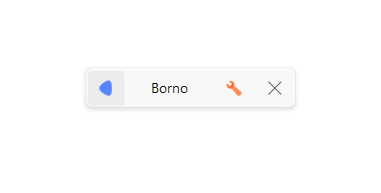
Click the app icon on the Borno Topbar to open the SyncType connection window.
You will see your local IP and a QR code.

Open the Borno SyncType app on your Android device and follow these steps to connect:
A. Open the App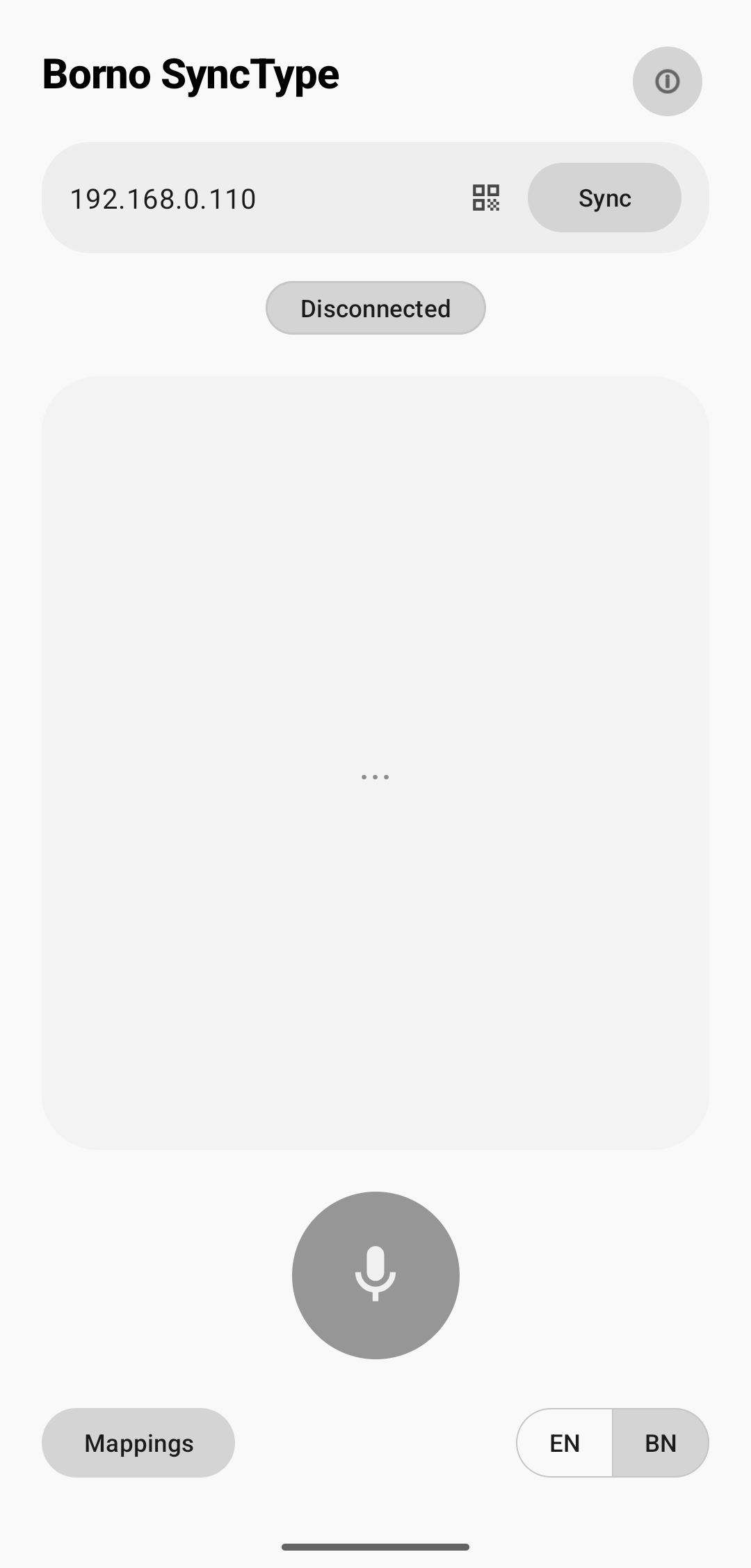
B. Scan QR or Type IP Tap the QR icon to scan the code from your PC, or manually type in the IP address. 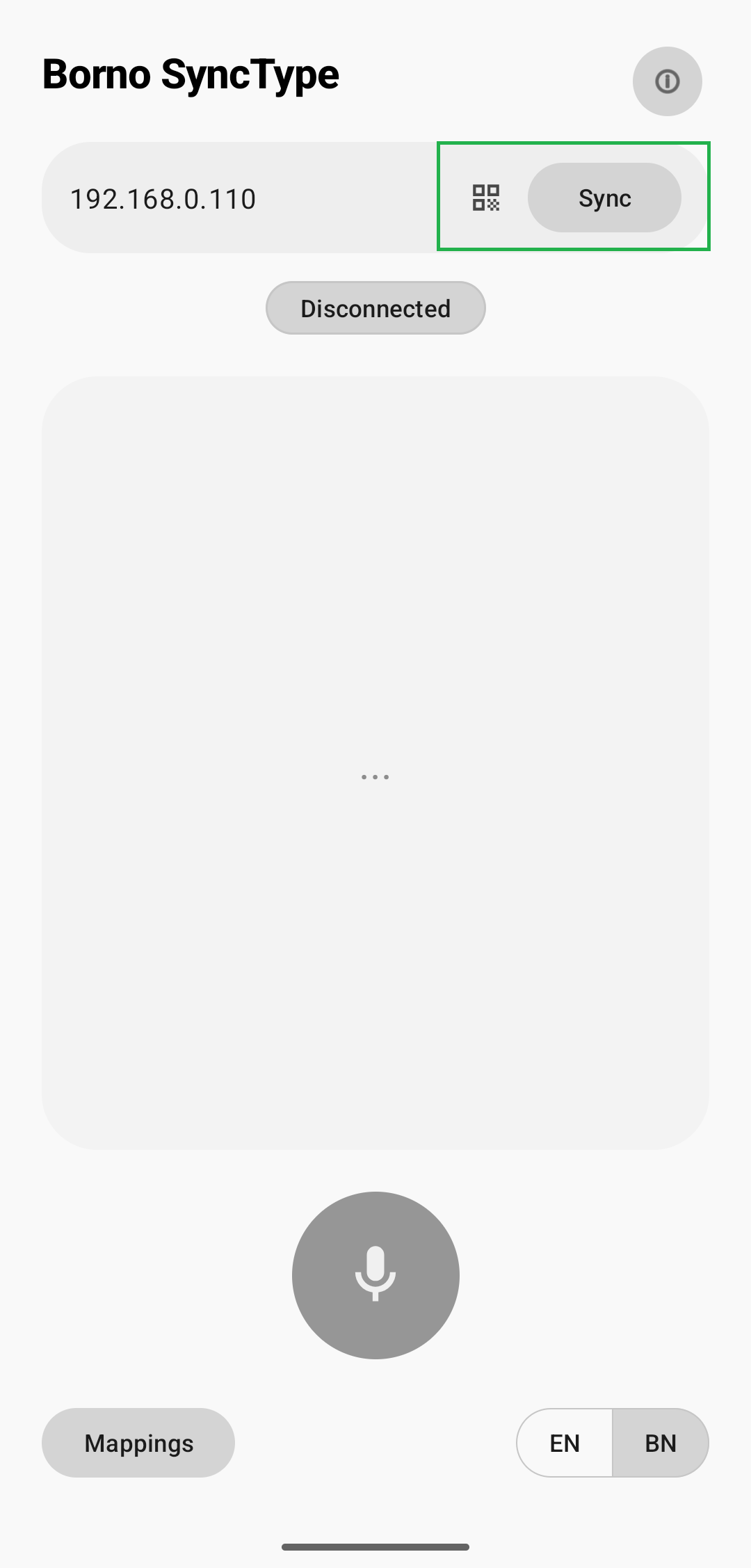
C. Connected Once the status shows as "Connected", you are ready to type! 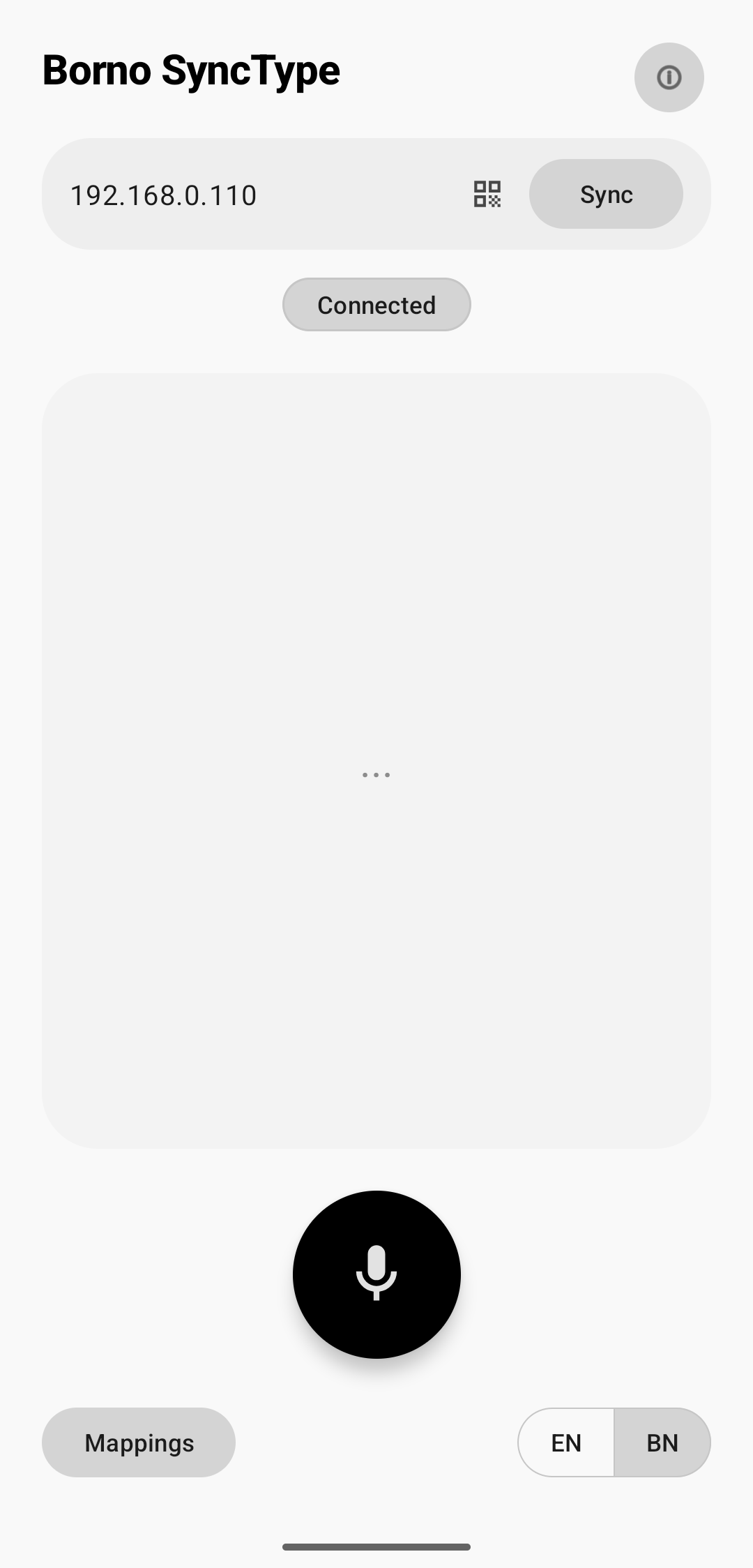
Usage
Once connected, tap the microphone button on your phone and speak. Your voice will be converted to text and typed directly into the active window on your PC.
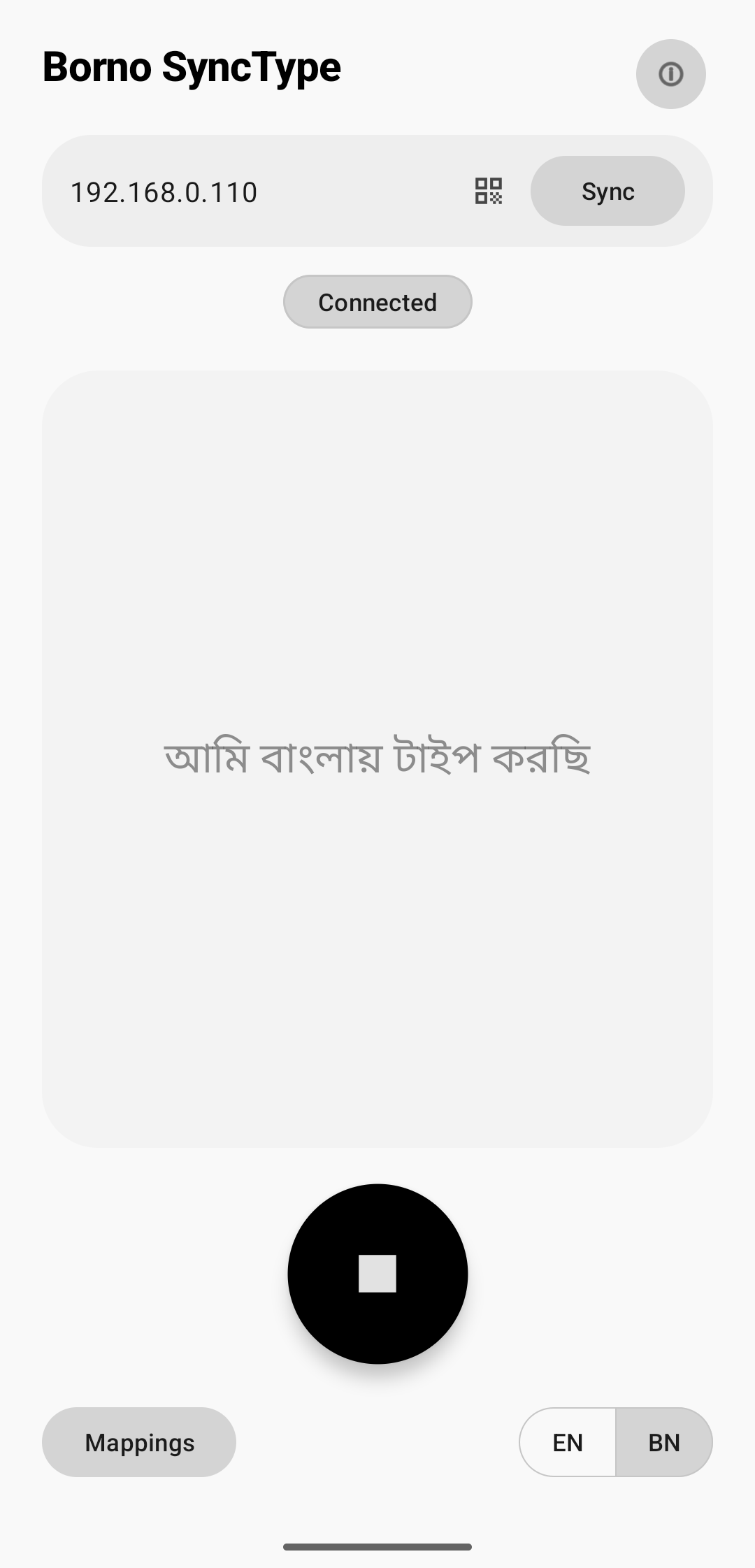
- Language Switching: You can easily toggle between English and Bangla using the switch beside the microphone button in the app.
- Wireless Freedom: Type from across the room as long as you are on the same network.
Privacy & Security
The voice recognition service is provided by Google Speech Recognition. Borno processes the converted text locally and does not store, record, or analyze your speech data.